Updated on: 17 Jan 2025
By: Admin
The Download Features section allows users to easily access and download various reports and data visualizations directly from the dashboard. Users can download Excel sheets or PowerPoint slides that replicate the visualizations on the current dashboard page. Additionally, users can generate and download detailed scorecards and audit-level data to suit their specific analysis or reporting needs.
How can I download Excel data as visualized on the dashboard page?
To download Excel data:
1. Navigate to the desired dashboard page.
2. Click on the "Excel" icon in the top-right corner of the dashboard view.
3. The Excel file will download containing the data visualized on the current dashboard page.

How can I download a PPT slide as visualized on the dashboard page?
To download a PowerPoint slide:
1. Navigate to the desired dashboard page.
2. Click on the "Powerpoint" icon in the top-right corner of the dashboard view.
3. The PPT slide will download with the visualization as seen on the current dashboard page.

Can I customize data before exporting to Excel or PPT?
Yes, you can customize data before exporting:
1. Navigate to the desired dashboard page.
2. Choose the customization options available for the report (e.g., filter by specific fields available in the Filter section).
3. Click "Apply" and then proceed with the export.

How do I generate downloadable audit-level data from the portal?
To generate Audit level data:
1. Navigate to the Data Management section in the dashboard.
2. Click on the "Generate Audit Data" button.
3. Select the required fields (e.g., "TimePeriod", "Category", "Segment", and "Touchpoint").
4. Click "Generate" to create and download the audit data.
Note: Ensure all mandatory fields are filled in carefully before generating.

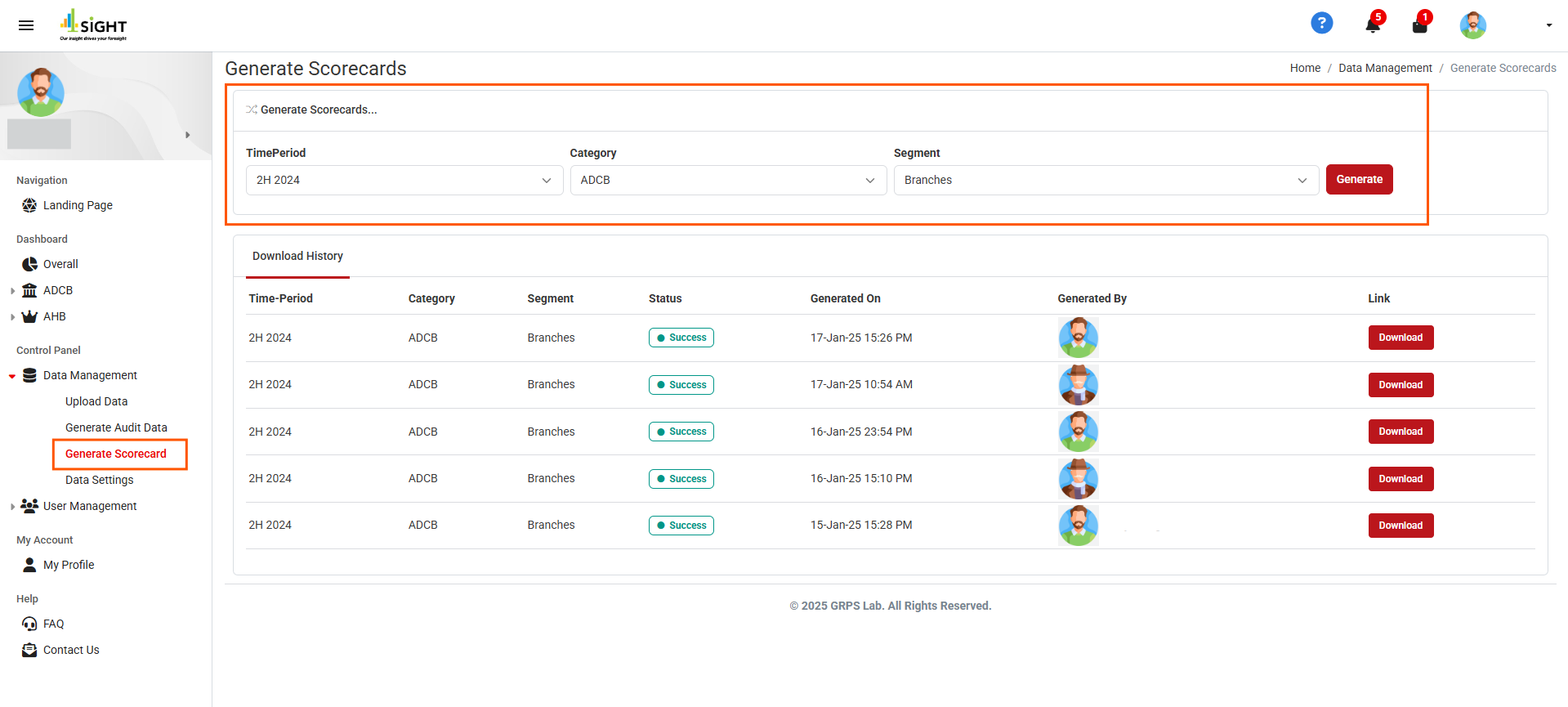
How do I generate a downloadable scorecard from the portal?
To generate a scorecard:
1. Navigate to the Data Management section in the dashboard.
2. Click on the "Generate Scorecard" button.
3. Select the required fields (e.g., "TimePeriod", "Category", and "Segment").
4. Click "Generate" to create and download the scorecard.
Note: Ensure all mandatory fields are filled in carefully before generating.
How do I troubleshoot failed downloads?
To troubleshoot failed downloads:
1. Ensure you have a stable internet connection.
2. Check if you have the necessary permissions to download the data.
3. Clear your browser cache and try again.
4. If the issue persists, contact support for assistance.
