Updated on: 17 Jan 2025
By: Admin
The Report Builder page provides a centralized platform for creating, managing, and exporting custom reports. Users can add multiple dashboard views to a cart, arrange or reorder slides, save customized reports for future use, and export them as needed. It streamlines the report creation process, offering flexibility to edit and shuffle slides, ensuring tailored and professional presentations for stakeholders.
How can I download multiple analysis/ dashboard views in PPT?
To add dashboard views to the cart:
1. Navigate to the desired dashboard pages.
2. Choose the customization options available for the report (e.g., filter by specific fields available in the Filter section).
3. Click on the "Add to Cart" button available on the dashboard view.
4. The selected views will be added to the Report Builder Cart for later export.

How can I save reports from the slides added to the cart?
To save reports:
1. Click on the "Cart" icon in the top panel/header and select "View All" to access the Report Builder page.
2. Review the slides added to the cart.
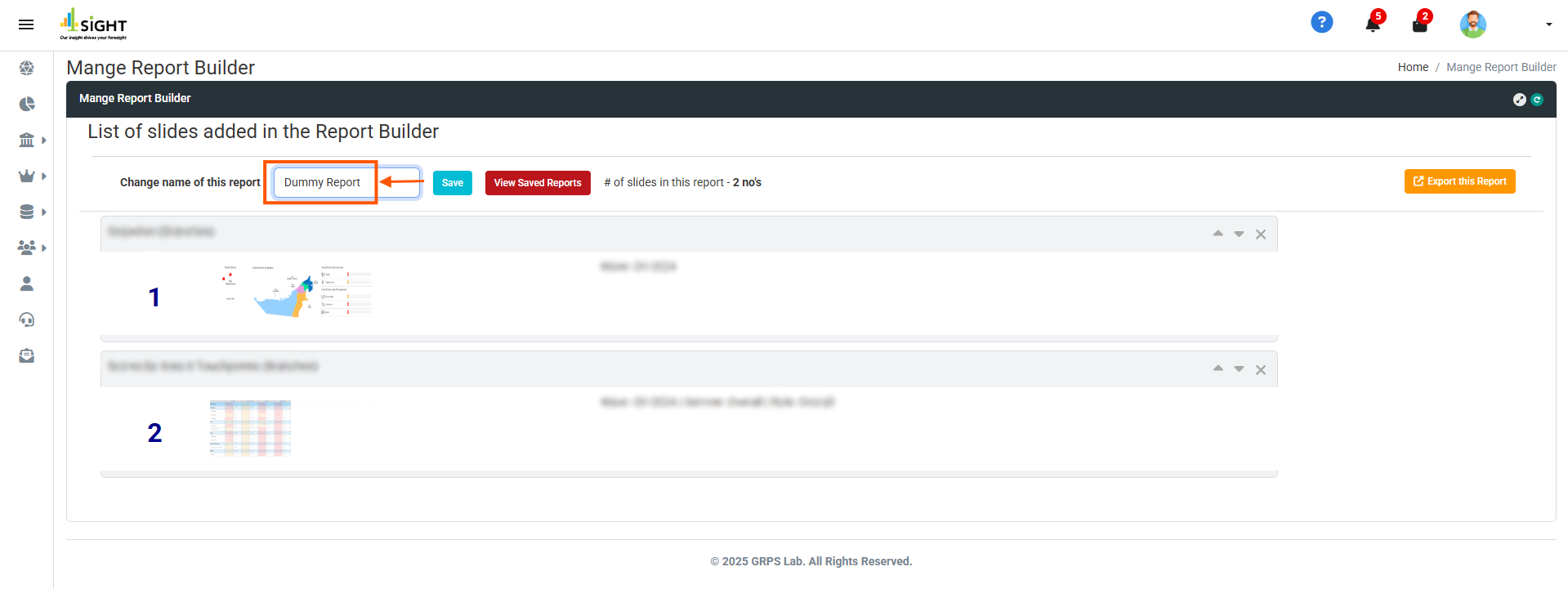
3. Provide a name for the saved report and click on "Save".
4. Your report will now be available under the "Saved Reports" section.

How can I export saved reports?
There are two ways to export saved reports:
Option 1: From the dashboard:
1. Click on the "Cart" icon in the top panel/header.
2. Click on the "Export Report" button.
Option 2: From the Report Builder page:
1. Navigate to the Report Builder page.
2. Select the desired saved report.
3. Click on the "Export this Report" button to download the report.


How can I rearrange slide positions in saved reports?
To rearrange slides:
1. Navigate to the Saved Reports section in the Report Builder page.
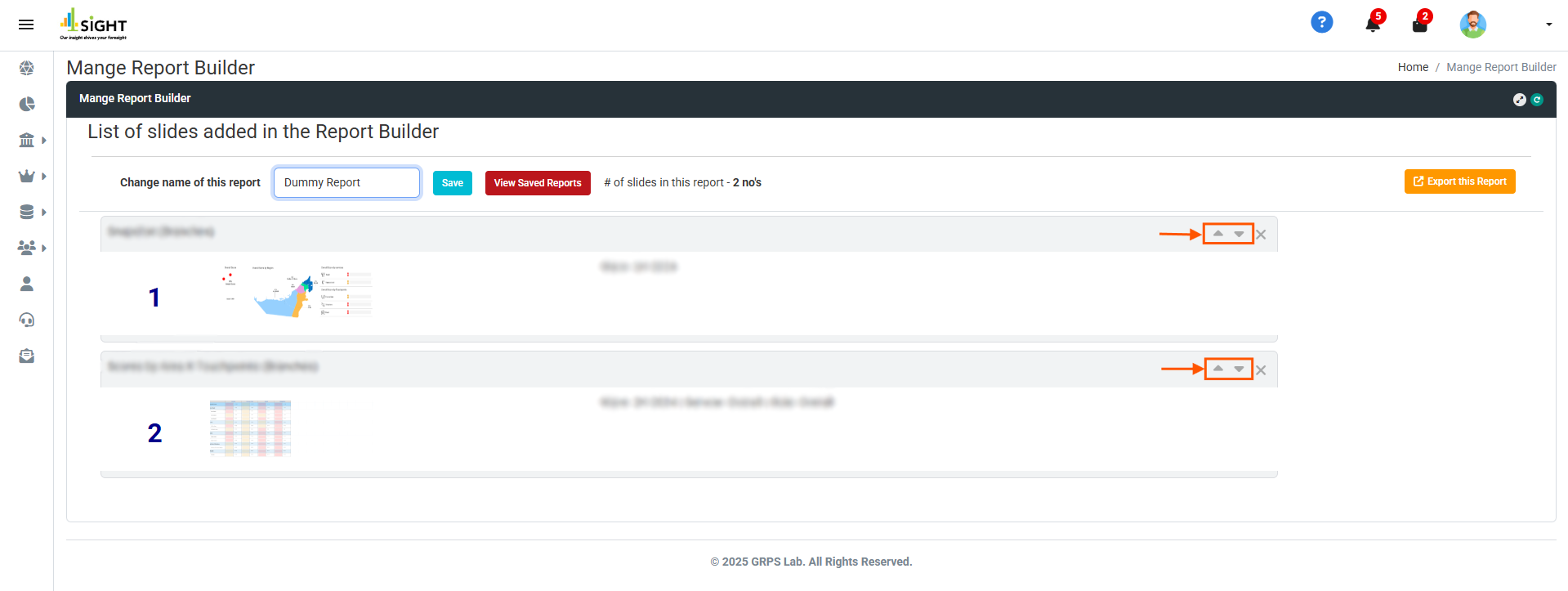
2. Use the up and down arrows available on each slide to adjust their order.
3. The updated slide order will be automatically saved.
How can I edit a saved report?
To edit a saved report:
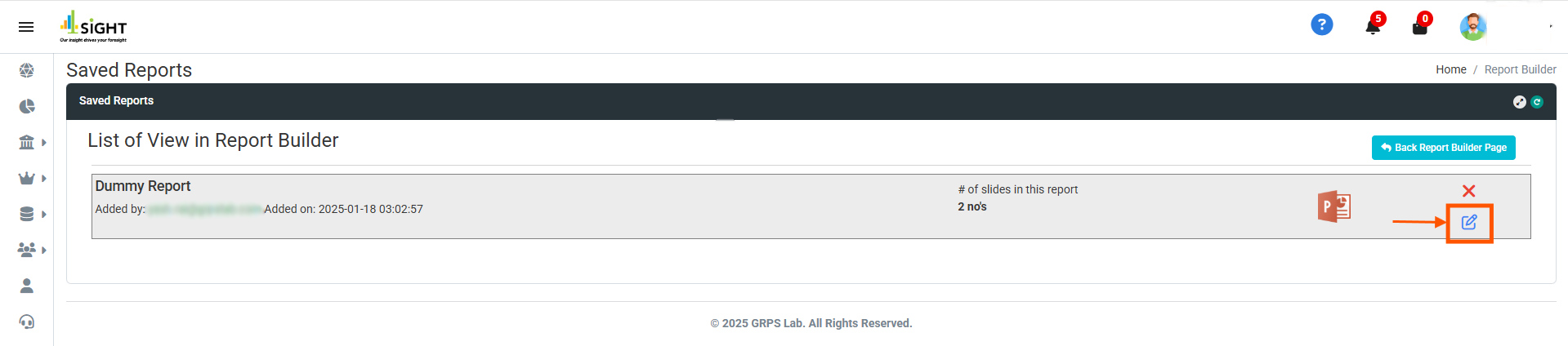
1. Click on the View Saved Reports button on the Report Builder page to view the list of reports.
2. Select the saved report you want to edit and click on the Edit icon.
3. Modify the report by adding, removing, or reordering slides.
4. Click "Save Changes" to apply your edits.